Supplier Management System Online Help
NB. You can download a pdf version of this page here
Getting Started
To access the Supplier Management System (SMS) portal, open your web browser and enter the following address: https://suppliermanager.seymourwhyte.com.au - alternatively, you can follow the Supplier Manager link provided to you in your original email from Seymour Whyte Estimating inviting you to tender.
You will be greeted with the main login page, where the main navigation toolbar is located. This toolbar is where all of the various functions of the SMS are accessed.

Return to Top
Login Process
To access any of the systems' functions, you will be prompted to login using your email address and password. If this is your first time logging in, or you have forgotten or lost your password, you can request a password by clicking on the Need to retrieve your password? link, and entering your email address. A new password will be sent out immediately.
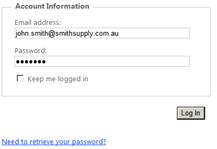
If these login credentials do not work, or you are having other difficulties with logging in, you can use the Send us an email function shown in the Contact Us page, found through the navigation toolbar. Alternatively please contact: 07 3340 4800.
Return to Top
My Details
It is strongly recommended that initially when you first log into the system, and periodically thereafter that you check and update your company and account details, in particular your contact details, so that you don't miss out on important updates or invitations to tender. This is done by clicking on the My Details button on the navigation toolbar at the top of the screen. You will be shown a list of the current details that Seymour Whyte has on file for your organisation.
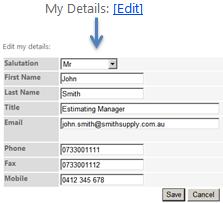
To edit these details simply click on the Edit button for either My Details or My Company Details and enter the relevant information.
Once you have completed updating the required information, ensure you click the Save button before proceeding. Any required information that is not entered will be flagged and the user will be prompted to enter this information before they can save their details.
Return to Top
My RFQ's
Requests for Quotation are shown under the My RFQ's page which can be accessed by clicking on the button in the navigation toolbar at the top of the screen. Shown in this list are any Requests for Quotation (RFQ) that you have been invited to tender for. These RFQ's are shown with their description, the relevant work package, the due date for submission and the current status of your submission. Example below:

By clicking on the RFQ reference # (e.g. AA1001 shown above in blue), you will be shown the details of that RFQ and will be able to access the supporting documentation and choose your status. This is where you will indicate whether or not you will be submitting a tender for the works offered.
By selecting the status "I intend to provide a quotation for this RFQ", the screen layout will change and the My Quotation section of the page will become active. By selecting this option, the user will be automatically reminded of the tender submission when the due date approaches, until the quote is received.
If you select the option "I do not wish to provide a quotation for this RFQ" the system will automatically update your status and will not send reminders when the due date approaches. If you change your mind, and wish to provide a tender prior to the due date expiring, you can change your status using the same process above. This will send an updated response to Seymour Whyte and inform them of your intention to submit a quotation.
Return to Top
My Quotation
In this section, the details of each quotation are shown. If you have not yet entered this information, it will be blank. Once you are ready to enter your quotation, simply click on the Edit button shown under the My Quotation heading. Simply enter the required information (including any notes or other supporting documentation) and then click Submit. This will save your quote in the system and automatically update your status to "Quote Submitted on ..."
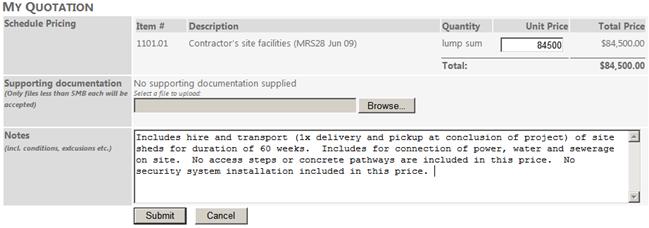
For any quotes you have submitted, they will be shown in the My RFQ's section of the SMS portal, with their updated status showing the date the quote was submitted.

Return to Top
Terms and Conditions
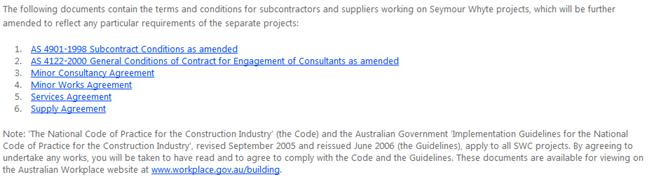
The Seymour Whyte Constructions standard Terms and Conditions can be easily accessed through this portal as well. This can be found by clicking on the Terms and Conditions button in the navigation toolbar at the top of the screen. Shown below:
Return to Top